

Web UI
The K2K-Tool Web UI allows management of committed offsets.
The K2K Tool provides a web interface that can be accessed when running the server command.
WEB UI
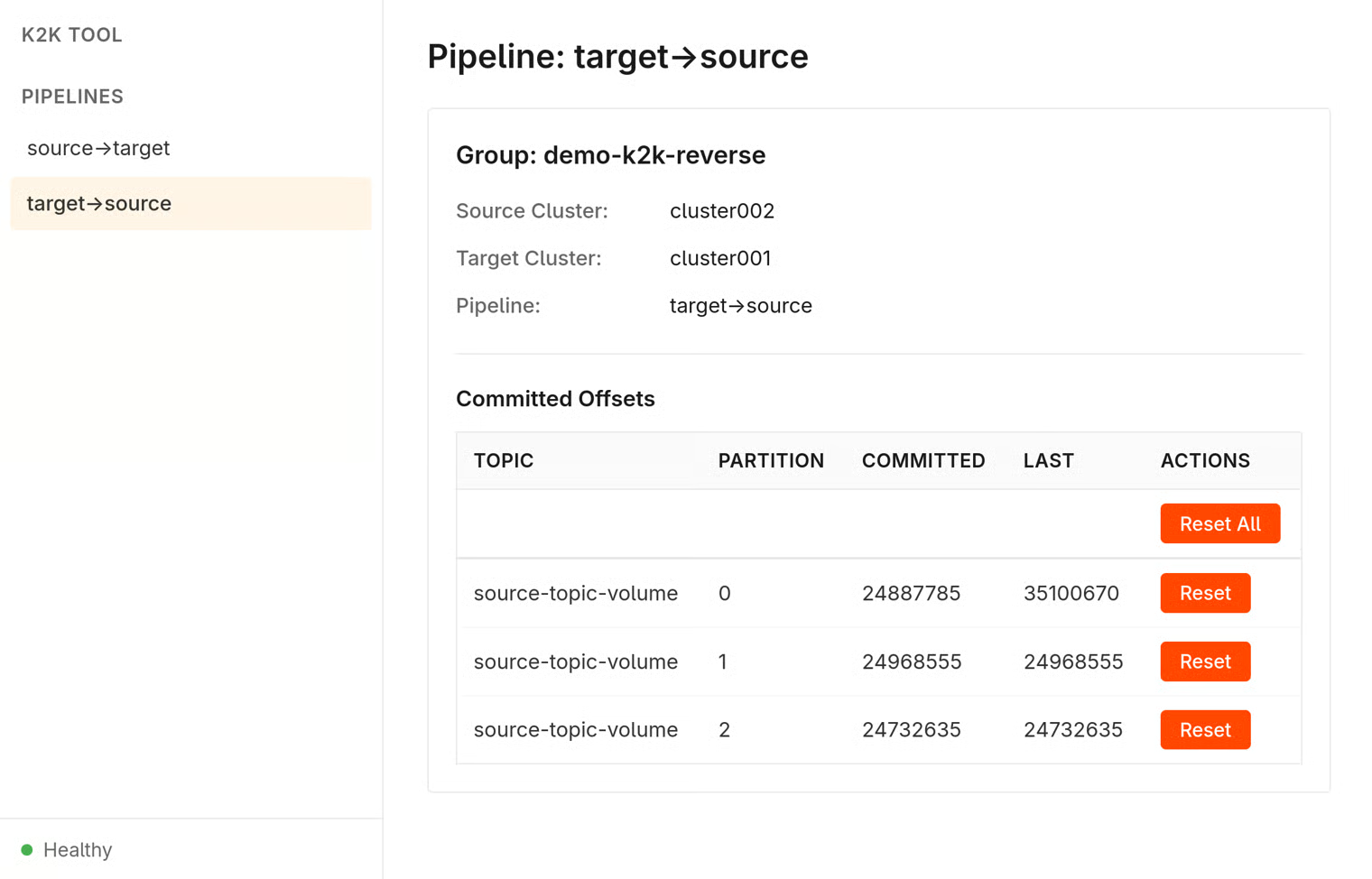
The web interface consists of:
Left Sidebar: Displays the list of available pipelines.
Right Content Panel: Shows detailed information about the selected pipeline
Actions
Offset Management Actions
Reset Individual Partition: Click the "Reset" button in the ACTIONS column for a specific partition to reset that partition's offset to your desired offset.
Reset All Partitions: Click the "Reset All" button above the committed offsets table to reset all partitions for all topics in the pipeline to offset 0 (earliest available offset).
Run
--file / -f
Comma-separated list of file(s) that define one k2k pipeline. Can be specified multiple times.
-
Yes, if --dir is not specified.
--dir
List of directories to watch for pipeline files. Can be specified multiple times.
-
Yes, unless --file is not specified
--defaults / -d
File containing defaults for the k2k app. Can be specified multiple times.
-
No
--host / -h
Host the server will accept requests from.
0.0.0.0
No
--port / -p
Port the server will accept requests from.
8080
No
--template-engine / -g
Enable or disable the template engine.
enabled
No
--healthcheck-timeout / -e
Duration to wait for a health check to complete.
5s
No
--watcher-interval / -w
Duration between checks for new files in the managed directories.
10s
No
--verbosity
Sets the log verbosity (e.g., debug, info, warn, error).
-
No
Last updated
Was this helpful?